I have decided to Quit University. I have made this decision four weeks ago, and I've stuck with it until now, and thus, I will now go through with it. Here I will elaborate on some of my thoughts and problems. Perhaps this will help somebody.
A Dream
During my years in high-school, it was my dream to go to a good University. I wished to learn freely, to learn what interested me, to meet like-minded people. I imagined myself free of the things I considered a burden in high-school. Boring homework, boring people, annoying restrictions, incredibly wasteful time-sinks, and most importantly, the freedom to learn how and what I wanted to learn at my own pace. Perhaps I would attain a Masters after my Bachelors, perhaps I would become somebody. I worked hard during my last school year to realize this dream. I passed all the necessary AP's and attained high enough grades. It payed off, and I do not regret a single ounce of this effort. I was overjoyed to be accepted into one of the top 100 universities in the world, located in Switzerland, my home country. My future was guaranteed, I would be someone important, I would be happy.
A Disappointment
It has been a year now since I've begun. I changed a lot, I learned a lot about myself. I am not happy living my dream. I lost my dream.
It was a completely new world for me. I was allowed to study at my own pace and I did not even have to attend most classes. I rarely met a person I admired, however. An inspirational person, somebody I would strive to become. All the computer science classes during my first year would be a repeat of what I already knew. Nevertheless, rarely, a new concept would pop up and surprise me. I was only restricted to passing the tests at the end of the semester. I thought it was great.
As the year progressed, however, I grew to dislike it more and more. I did not want to implement heaps and sorting algorithms in C, I wanted to learn Rails and the negatives of Iterative MVP's. I did not care for obscure formats and protocol, I wanted to create. I wanted to learn as a part of the creation process. I wanted to do, I wanted to make, I wanted to construct my fantasies as I had been doing before. The end tests started hanging over me like a dark cloud, a stressor directing me to study. The only reason I continued to go was job security. A piece of paper. I lost who I wanted to be by being someone else.
Social Stigma
It is really hard to make a decision on this matter without taking into consideration the social stigma associated with it. One is easily labeled as a drop-out, as stupid and of little or no importance.
Many associate dropping out of university with being impulsive and rash. It is often perceived that long-term thinking plays no part in it, that it is a decision made in the absence of thought. Often, this also comes with the belief that one will stop learning. That as soon as the "dropping out" has commenced, laziness and partying will follow. It is a widely held belief that University is the only opportunity to advance a career, that the person in question will work a menial job for the rest of his life.
Many beliefs on this matter are outdated, and some only apply to specific regions of the job market. Most are blatantly wrong, however. It is difficult to overcome such thinking, to see through what one has been taught an entire life. It is difficult to remove this pressure to follow a path many wish to follow, a path which for many may be correct.
The Road Ahead
I believe studying computer science is a mistake for me, however. A certificate can be replaced by experience and evidence of such. In the world of technology, you are free to create masterful pieces, show them to the world, prove your expertise. You are free to learn the technologies you require, free to join societies you benefit from. This road is more difficult without doubt, yet I believe it will be the one leading me to happiness.
I trust that I can succeed. As of now, I do not have much evidence of this. The next two years will be spent expanding my skills and acquiring this evidence. I believe I will be further in two years, than I would be if I, alternatively, get my degree.
I am planning to learn a new language and publish a book. More importantly, however, I am planning to finish a programming project every month. I want to be ambitious, I want to push my wall further than I can even now imagine.
I will be documenting my Journey on this Blog.
Join Me,
Simon
Showing posts with label learn. Show all posts
Showing posts with label learn. Show all posts
Friday, May 3, 2013

Thursday, April 30, 2009
Learning BASH (part 1)
What's BASH?
BASH (GNU Bourne-Again SHell) is the scripting language used in mostly Linux Environments. If you don't know what Linux is or don't have a Linux based OS installed on your computer right now visit: http://www.linux.com/whatislinux/114354. For this blog post, I will recklessly assume that you are using Ubuntu, as that's what I'm using right now. If you're not using Ubuntu, things will hopefully work out anyway (they should, at least). BASH and Linux can be compared to DOS and Windows.
Why Learn It?
If your Operating System doesn't boot any more, booting into a BASH console (Ubuntu recovery mode) instead into an X Window Server (the thing which manages the windows which you're probably looking at) is a great and easy way to recover your files and fix your booting process. BASH can also be an easy and quick way to get things done around your great open source OS.
How to Learn It:
Now that I've (hopefully) convince you to learn BASH, let's learn it =D
First of all, you will need to find a way to access a BASH console. In Ubuntu such a terminal can be found under: /usr/bin/gnome-terminal (navigate to /usr/bin/ and double click on gnome-terminal to open it). I suggest you create a shortcut to it by dragging it onto your Desktop while holding CTRL + SHIFT.
Once open, you will hopefully see this (if Simon is your name and Simon-Ubuntu-8 is your computers name):
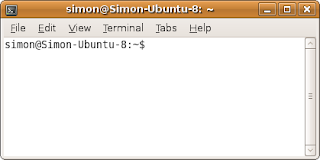
Want to change the Colors to something (hopefully) better looking? Click on "Edit" in the toolbar, then click on "Profile Preferences" on the drop down menu. Finally click on the "Colors" tab on the window which just opened. After changing the colors to what you want them to be, close the options window and lets get started =D
Do you see the "$" at the end of the first line on the terminal? That means the terminal is waiting for you to command it. Let's not make it wait for too long =D
Make sure the terminal window has your mouse focus by clicking on it, then type:
man
Hopefully the terminal replied like this:
What manual page do you want?
And then displaying your name and the "$" sign once again, ready for the next command.
Now what have you just done? You have told the console to run a file called "man" (stands for manual) and to display the results. Do you want to know where the "man" file is located?
Type in:
which man
And here's what I got:
/usr/bin/man
As you can see, typing in "which" and then a command name will tell you the file where that command is stored. Now let's go back to the "man" command. Typing in "man" and then a command name will tell you everything about that command.
Try typing:
man ls
You will get something which looks like this:
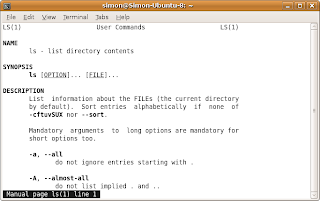
If you look at the bottom left corner, it will tell you what you are looking at and the line you are currently on. You can navigate up and down by using (Surprise!) the UP and DOWN arrow keys. Once you are done reading about the "ls" command you can press Q (as in Quit) to go back to your familiar console. The "man" command is VERY IMPORTANT, use it to check up on commands you don't know about before you use them. ALWAYS.
As you have hopefully figured out by now, the "ls" command lists the files of the directory you are currently looking at. Try it out if you want to =D
That's all nice and good but how do you know in which directory you are at the moment, and how do you change it?
Do a man look up on "pwd" by typing:
man pwd
After reading, press Q to exit, as I told you above.
Hopefully you have figured it out by now, the "pwd" command Prints the Working Directory, so the directory you are currently in.
Try it:
pwd
I got:
/home/simon
Now you could type:
ls
To get a list of files in the /home/simon directory.
Now how do we navigate around our directories?
Use the "cd" command. Typing in "man cd" gets you: "No manual entry for cd", so don't even bother. Instead, read this: Typing "cd" and a sub-directory name will change your current directory to that.
Let's try it =D
Find your current directory by typing:
pwd
Here's mine:
/home/simon
Now type "cd" and a sub-directory:
cd Desktop
Then find your current directory again by typing:
pwd
And be surprised, it changed:
/home/simon/Desktop
Here are some other useful things you can do with the "cd" command:
Type in "cd /" to navigate to the root directory.
Type in "cd .." move to the parent directory.
The End (for now).
What, but there is so much left to learn?!
Yes, there is. I will write more later this week (hopefully). This tutorial was quite fun to write so I think I will make a tutorial series.
In the mean time, look up these basic commands (using "man" or Google):
BASH (GNU Bourne-Again SHell) is the scripting language used in mostly Linux Environments. If you don't know what Linux is or don't have a Linux based OS installed on your computer right now visit: http://www.linux.com/whatislinux/114354. For this blog post, I will recklessly assume that you are using Ubuntu, as that's what I'm using right now. If you're not using Ubuntu, things will hopefully work out anyway (they should, at least). BASH and Linux can be compared to DOS and Windows.
Why Learn It?
If your Operating System doesn't boot any more, booting into a BASH console (Ubuntu recovery mode) instead into an X Window Server (the thing which manages the windows which you're probably looking at) is a great and easy way to recover your files and fix your booting process. BASH can also be an easy and quick way to get things done around your great open source OS.
How to Learn It:
Now that I've (hopefully) convince you to learn BASH, let's learn it =D
First of all, you will need to find a way to access a BASH console. In Ubuntu such a terminal can be found under: /usr/bin/gnome-terminal (navigate to /usr/bin/ and double click on gnome-terminal to open it). I suggest you create a shortcut to it by dragging it onto your Desktop while holding CTRL + SHIFT.
Once open, you will hopefully see this (if Simon is your name and Simon-Ubuntu-8 is your computers name):

Want to change the Colors to something (hopefully) better looking? Click on "Edit" in the toolbar, then click on "Profile Preferences" on the drop down menu. Finally click on the "Colors" tab on the window which just opened. After changing the colors to what you want them to be, close the options window and lets get started =D
Do you see the "$" at the end of the first line on the terminal? That means the terminal is waiting for you to command it. Let's not make it wait for too long =D
Make sure the terminal window has your mouse focus by clicking on it, then type:
man
Hopefully the terminal replied like this:
What manual page do you want?
And then displaying your name and the "$" sign once again, ready for the next command.
Now what have you just done? You have told the console to run a file called "man" (stands for manual) and to display the results. Do you want to know where the "man" file is located?
Type in:
which man
And here's what I got:
/usr/bin/man
As you can see, typing in "which" and then a command name will tell you the file where that command is stored. Now let's go back to the "man" command. Typing in "man" and then a command name will tell you everything about that command.
Try typing:
man ls
You will get something which looks like this:

If you look at the bottom left corner, it will tell you what you are looking at and the line you are currently on. You can navigate up and down by using (Surprise!) the UP and DOWN arrow keys. Once you are done reading about the "ls" command you can press Q (as in Quit) to go back to your familiar console. The "man" command is VERY IMPORTANT, use it to check up on commands you don't know about before you use them. ALWAYS.
As you have hopefully figured out by now, the "ls" command lists the files of the directory you are currently looking at. Try it out if you want to =D
That's all nice and good but how do you know in which directory you are at the moment, and how do you change it?
Do a man look up on "pwd" by typing:
man pwd
After reading, press Q to exit, as I told you above.
Hopefully you have figured it out by now, the "pwd" command Prints the Working Directory, so the directory you are currently in.
Try it:
pwd
I got:
/home/simon
Now you could type:
ls
To get a list of files in the /home/simon directory.
Now how do we navigate around our directories?
Use the "cd" command. Typing in "man cd" gets you: "No manual entry for cd", so don't even bother. Instead, read this: Typing "cd" and a sub-directory name will change your current directory to that.
Let's try it =D
Find your current directory by typing:
pwd
Here's mine:
/home/simon
Now type "cd" and a sub-directory:
cd Desktop
Then find your current directory again by typing:
pwd
And be surprised, it changed:
/home/simon/Desktop
Here are some other useful things you can do with the "cd" command:
Type in "cd /" to navigate to the root directory.
Type in "cd .." move to the parent directory.
The End (for now).
What, but there is so much left to learn?!
Yes, there is. I will write more later this week (hopefully). This tutorial was quite fun to write so I think I will make a tutorial series.
In the mean time, look up these basic commands (using "man" or Google):
- echo
- sleep
- su (useful)
- true
- false
- netstat (useful)
- ifconfig (useful)
- ping (somewhat useful)
- open (useful)
- cat (useful)
- mkdir (useful)
- rmdir (useful)
Subscribe to:
Posts (Atom)