During this great and incredible summer vacation I'm going to attempt to program a server. This server will be part of my MMORPG, hence the title. Today I just brainstormed what and how the server will act like.
First of all I had to decide on the protocol. While UDP is very quick, it's not very reliable. Packets may get lost a long the way and there is no way to know if they arrive in the same order that they where sent. TCP is of course the opposite. It is very reliable, however it is of course slower. I choose to go with TCP. The reason is that I need a reliable connection between my Server and Client to debug the Server easily. TCP is also easier to implement, which is an added bonus. Maybe when the server is up and running I will switch some things the server sends in an endless stream (like the players locations) to a UDP protocol to ease the load.
The serve will be programmed in C. The reason being is that C is very quick and reliable once all bugs have been found. I do not now C fully yet, however for the last month or so I have been playing around with C and some parts are extremely similar to Java, my current all time favorite. I'll have to learn a little bit of C while programming this server, not to speak of the idea of sockets, something which I have never looked at before. Overall this server will be a tremendous learning experience, I will have gained a lot from it even if it ends up in heaps and ashes (something which I am positive won't happen) =D
The server will run on Linux. Linux is just more reliable. Period. My chosen Linux OS is Ubuntu. The reason behind this is that I have been using Ubuntu for the past year now and only switched to windows for the occasionally PowerPoint presentation I had to create for "educational means". I have my old computer lying around and I thought I might install Ubuntu on it and see where it goes from there =D
Now how do I test the server? Well my idea is that I will connect my main computer to my old computer (via LAN of course). After that I 'm going to install SSH on my old computer so I can compile and run the C code through SSH. That's what I'm going to try to do next.
This post has become very long and I hate to see it end, but if I would write about everything I have brainstormed the next few posts would look like nothing you've ever seen, simply because you wouldn't be able to see them =D
Showing posts with label ubuntu. Show all posts
Showing posts with label ubuntu. Show all posts
Saturday, June 27, 2009

Thursday, April 30, 2009
Learning BASH (part 1)
What's BASH?
BASH (GNU Bourne-Again SHell) is the scripting language used in mostly Linux Environments. If you don't know what Linux is or don't have a Linux based OS installed on your computer right now visit: http://www.linux.com/whatislinux/114354. For this blog post, I will recklessly assume that you are using Ubuntu, as that's what I'm using right now. If you're not using Ubuntu, things will hopefully work out anyway (they should, at least). BASH and Linux can be compared to DOS and Windows.
Why Learn It?
If your Operating System doesn't boot any more, booting into a BASH console (Ubuntu recovery mode) instead into an X Window Server (the thing which manages the windows which you're probably looking at) is a great and easy way to recover your files and fix your booting process. BASH can also be an easy and quick way to get things done around your great open source OS.
How to Learn It:
Now that I've (hopefully) convince you to learn BASH, let's learn it =D
First of all, you will need to find a way to access a BASH console. In Ubuntu such a terminal can be found under: /usr/bin/gnome-terminal (navigate to /usr/bin/ and double click on gnome-terminal to open it). I suggest you create a shortcut to it by dragging it onto your Desktop while holding CTRL + SHIFT.
Once open, you will hopefully see this (if Simon is your name and Simon-Ubuntu-8 is your computers name):
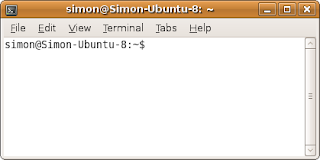
Want to change the Colors to something (hopefully) better looking? Click on "Edit" in the toolbar, then click on "Profile Preferences" on the drop down menu. Finally click on the "Colors" tab on the window which just opened. After changing the colors to what you want them to be, close the options window and lets get started =D
Do you see the "$" at the end of the first line on the terminal? That means the terminal is waiting for you to command it. Let's not make it wait for too long =D
Make sure the terminal window has your mouse focus by clicking on it, then type:
man
Hopefully the terminal replied like this:
What manual page do you want?
And then displaying your name and the "$" sign once again, ready for the next command.
Now what have you just done? You have told the console to run a file called "man" (stands for manual) and to display the results. Do you want to know where the "man" file is located?
Type in:
which man
And here's what I got:
/usr/bin/man
As you can see, typing in "which" and then a command name will tell you the file where that command is stored. Now let's go back to the "man" command. Typing in "man" and then a command name will tell you everything about that command.
Try typing:
man ls
You will get something which looks like this:
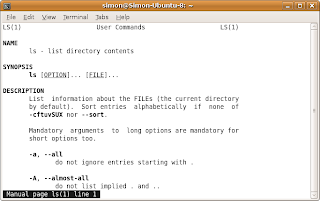
If you look at the bottom left corner, it will tell you what you are looking at and the line you are currently on. You can navigate up and down by using (Surprise!) the UP and DOWN arrow keys. Once you are done reading about the "ls" command you can press Q (as in Quit) to go back to your familiar console. The "man" command is VERY IMPORTANT, use it to check up on commands you don't know about before you use them. ALWAYS.
As you have hopefully figured out by now, the "ls" command lists the files of the directory you are currently looking at. Try it out if you want to =D
That's all nice and good but how do you know in which directory you are at the moment, and how do you change it?
Do a man look up on "pwd" by typing:
man pwd
After reading, press Q to exit, as I told you above.
Hopefully you have figured it out by now, the "pwd" command Prints the Working Directory, so the directory you are currently in.
Try it:
pwd
I got:
/home/simon
Now you could type:
ls
To get a list of files in the /home/simon directory.
Now how do we navigate around our directories?
Use the "cd" command. Typing in "man cd" gets you: "No manual entry for cd", so don't even bother. Instead, read this: Typing "cd" and a sub-directory name will change your current directory to that.
Let's try it =D
Find your current directory by typing:
pwd
Here's mine:
/home/simon
Now type "cd" and a sub-directory:
cd Desktop
Then find your current directory again by typing:
pwd
And be surprised, it changed:
/home/simon/Desktop
Here are some other useful things you can do with the "cd" command:
Type in "cd /" to navigate to the root directory.
Type in "cd .." move to the parent directory.
The End (for now).
What, but there is so much left to learn?!
Yes, there is. I will write more later this week (hopefully). This tutorial was quite fun to write so I think I will make a tutorial series.
In the mean time, look up these basic commands (using "man" or Google):
BASH (GNU Bourne-Again SHell) is the scripting language used in mostly Linux Environments. If you don't know what Linux is or don't have a Linux based OS installed on your computer right now visit: http://www.linux.com/whatislinux/114354. For this blog post, I will recklessly assume that you are using Ubuntu, as that's what I'm using right now. If you're not using Ubuntu, things will hopefully work out anyway (they should, at least). BASH and Linux can be compared to DOS and Windows.
Why Learn It?
If your Operating System doesn't boot any more, booting into a BASH console (Ubuntu recovery mode) instead into an X Window Server (the thing which manages the windows which you're probably looking at) is a great and easy way to recover your files and fix your booting process. BASH can also be an easy and quick way to get things done around your great open source OS.
How to Learn It:
Now that I've (hopefully) convince you to learn BASH, let's learn it =D
First of all, you will need to find a way to access a BASH console. In Ubuntu such a terminal can be found under: /usr/bin/gnome-terminal (navigate to /usr/bin/ and double click on gnome-terminal to open it). I suggest you create a shortcut to it by dragging it onto your Desktop while holding CTRL + SHIFT.
Once open, you will hopefully see this (if Simon is your name and Simon-Ubuntu-8 is your computers name):

Want to change the Colors to something (hopefully) better looking? Click on "Edit" in the toolbar, then click on "Profile Preferences" on the drop down menu. Finally click on the "Colors" tab on the window which just opened. After changing the colors to what you want them to be, close the options window and lets get started =D
Do you see the "$" at the end of the first line on the terminal? That means the terminal is waiting for you to command it. Let's not make it wait for too long =D
Make sure the terminal window has your mouse focus by clicking on it, then type:
man
Hopefully the terminal replied like this:
What manual page do you want?
And then displaying your name and the "$" sign once again, ready for the next command.
Now what have you just done? You have told the console to run a file called "man" (stands for manual) and to display the results. Do you want to know where the "man" file is located?
Type in:
which man
And here's what I got:
/usr/bin/man
As you can see, typing in "which" and then a command name will tell you the file where that command is stored. Now let's go back to the "man" command. Typing in "man" and then a command name will tell you everything about that command.
Try typing:
man ls
You will get something which looks like this:

If you look at the bottom left corner, it will tell you what you are looking at and the line you are currently on. You can navigate up and down by using (Surprise!) the UP and DOWN arrow keys. Once you are done reading about the "ls" command you can press Q (as in Quit) to go back to your familiar console. The "man" command is VERY IMPORTANT, use it to check up on commands you don't know about before you use them. ALWAYS.
As you have hopefully figured out by now, the "ls" command lists the files of the directory you are currently looking at. Try it out if you want to =D
That's all nice and good but how do you know in which directory you are at the moment, and how do you change it?
Do a man look up on "pwd" by typing:
man pwd
After reading, press Q to exit, as I told you above.
Hopefully you have figured it out by now, the "pwd" command Prints the Working Directory, so the directory you are currently in.
Try it:
pwd
I got:
/home/simon
Now you could type:
ls
To get a list of files in the /home/simon directory.
Now how do we navigate around our directories?
Use the "cd" command. Typing in "man cd" gets you: "No manual entry for cd", so don't even bother. Instead, read this: Typing "cd" and a sub-directory name will change your current directory to that.
Let's try it =D
Find your current directory by typing:
pwd
Here's mine:
/home/simon
Now type "cd" and a sub-directory:
cd Desktop
Then find your current directory again by typing:
pwd
And be surprised, it changed:
/home/simon/Desktop
Here are some other useful things you can do with the "cd" command:
Type in "cd /" to navigate to the root directory.
Type in "cd .." move to the parent directory.
The End (for now).
What, but there is so much left to learn?!
Yes, there is. I will write more later this week (hopefully). This tutorial was quite fun to write so I think I will make a tutorial series.
In the mean time, look up these basic commands (using "man" or Google):
- echo
- sleep
- su (useful)
- true
- false
- netstat (useful)
- ifconfig (useful)
- ping (somewhat useful)
- open (useful)
- cat (useful)
- mkdir (useful)
- rmdir (useful)
Subscribe to:
Posts (Atom)